Buy anything from 5,000+ international stores. One checkout price. No surprise fees. Join 2M+ shoppers on Desertcart.
Desertcart purchases this item on your behalf and handles shipping, customs, and support to Lithuania.
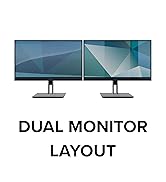
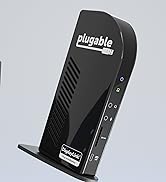
🚀 Power Your Productivity with Plugable’s Ultimate Dual HDMI Dock!
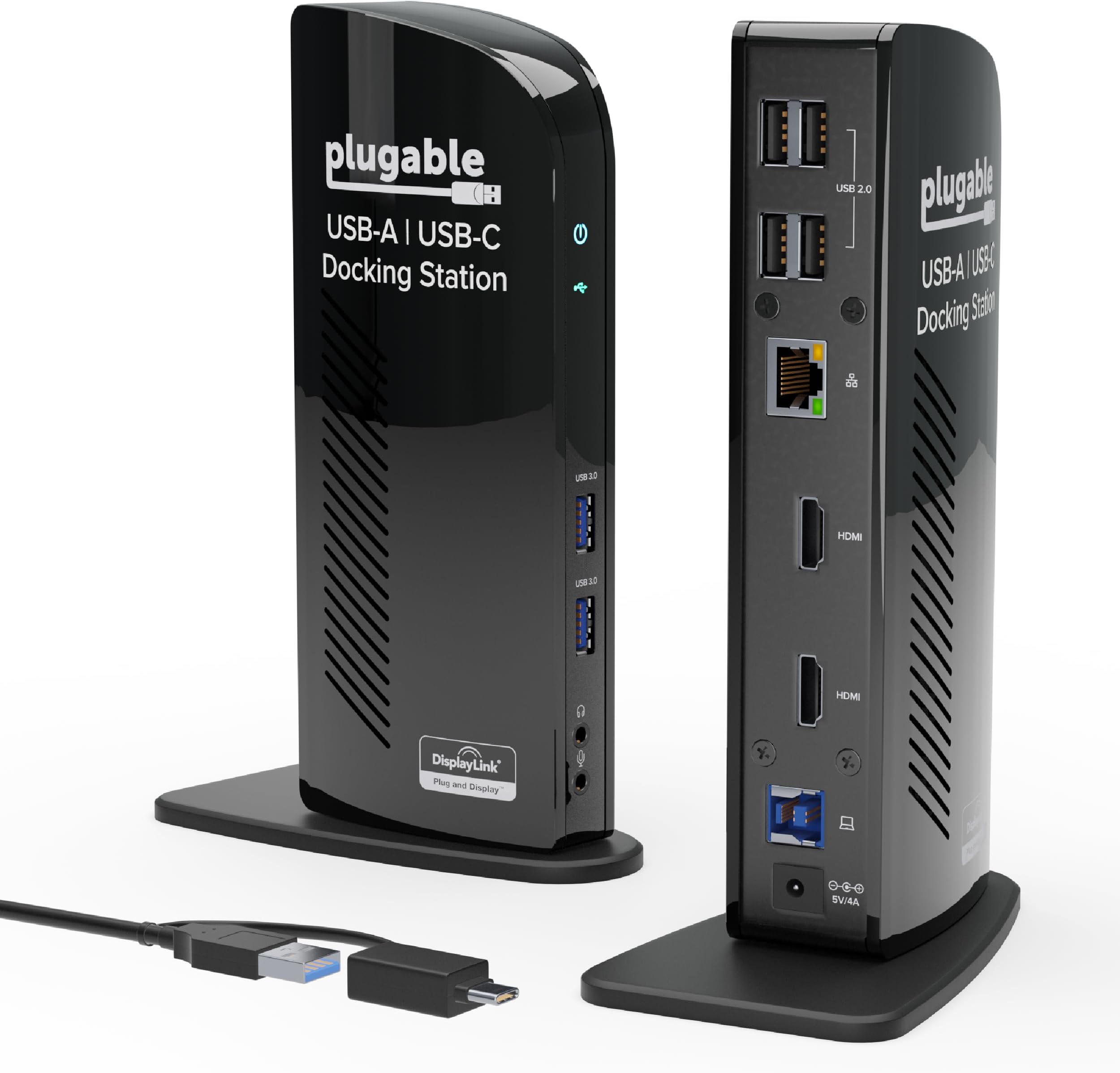
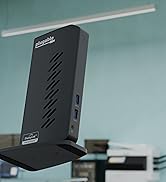
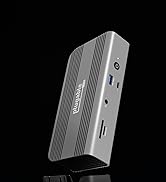
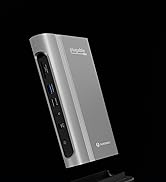
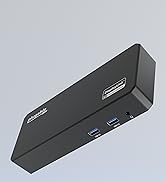
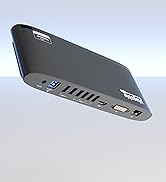
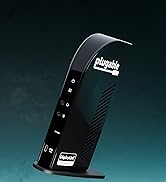
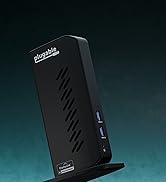
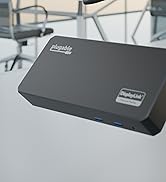
The Plugable UD-3900 is a versatile universal docking station designed for Windows and Mac users seeking to expand their workspace with dual HDMI monitors, USB 3.0/USB-C connectivity, and wired Gigabit Ethernet. Supporting resolutions up to 1920x1200 at 60Hz on dual displays, it consolidates up to 6 USB ports and audio jacks into a single hub. Ideal for professional multitasking and productivity, it requires driver installation on macOS and offers robust 2-year warranty coverage with lifetime support.


| ASIN | B00ECDM78E |
| Best Sellers Rank | #1,663 in Electronics ( See Top 100 in Electronics ) #27 in Laptop Docking Stations |
| Brand | Plugable |
| Built-In Media | USB docking station |
| Color | Black |
| Compatible Devices | Macbook Pro 13" / 14" / 15", 16", MacBook Air, MacBook Retina, MacBook M1 / M2 / M3 / M4 / M5 / Neo, HP Spectre x360 / Pavilion / Envy, Dell Pro / Plus / Pro Max / XPS / Latitude / Inspiron series, Lenovo ThinkPad / IdeaPad / Yoga / Flex, Surface Pro 7 / 7+ / 8 / 9, Surface Laptop 3 / 4 / 5 / Go / Go 2 / Studio / SE, LG Gram, Acer Aspire / Swift / Spin, ASUS Zenbook / Vivobook, Most Windows systems with Windows 10 or newer, Most Chromebooks running ChromeOS 100 or newer Compatible Devices Macbook Pro 13" / 14" / 15", 16", MacBook Air, MacBook Retina, MacBook M1 / M2 / M3 / M4 / M5 / Neo, HP Spectre x360 / Pavilion / Envy, Dell Pro / Plus / Pro Max / XPS / Latitude / Inspiron series, Lenovo ThinkPad / IdeaPad / Yoga / Flex, Surface Pro 7 / 7+ / 8 / 9, Surface Laptop 3 / 4 / 5 / Go / Go 2 / Studio / SE, LG Gram, Acer Aspire / Swift / Spin, ASUS Zenbook / Vivobook, Most Windows systems with Windows 10 or newer, Most Chromebooks running ChromeOS 100 or newer See more |
| Customer Reviews | 4.5 out of 5 stars 11,805 Reviews |
| Global Trade Identification Number | 00649241924616 |
| Hardware Interface | USB 3.0, USB 3.0 Type B, USB Type C |
| Item Dimensions L x W x H | 4.9"L x 2.8"W x 7.7"H |
| Item Type Name | Plugable |
| Item Weight | 13 Ounces |
| Manufacturer | Plugable |
| Mfr Part Number | UD-3900 |
| Minimum Required Operating System Version | Windows 7 |
| Model Number | UD-3900 |
| Number of Ports | 11 |
| Product Dimensions | 4.9"L x 2.8"W x 7.7"H |
| Smart Home Compatibility | Not Smart Home Compatible |
| Total Number of HDMI Ports | 1 |
| Total USB Ports | 6 |
| Total Usb Ports | 6 |
| UPC | 649241924616 780411933417 |
| Unit Count | 1.0 Count |
| Warranty Description | 2 YEAR WARRANTY - We love our Plugable products, and hope you will too. This product is covered by a 2 year limited parts and labor warranty, as well as Seattle-based email support |
| Wattage | 20 watts |
M**N
Accomplishes everything I need without breaking the bank
I don’t normally write reviews because like everyone else on this planet I’m busy, between my graduate degree, work, and life in general, my spare time is valuable. However, I struggled for months trying to find the right combination of things for my specific situation and I am hoping this will help other people make an informed decision that they are happy with. After talking with tech people at work and in stores, and in addition to my own internet research I finally settled on the Plugable USB 3.0 Docking Station (Model UD-3900, Dual Monitor Docking Station). I’ve included my thoughts on the Plugable USB 3.0 Docking Station as well as some helpful hints that users who are not super computer savvy might find helpful (I will add, I’m not a super techy person myself). First, my thoughts on this product: It accomplishes my “wish list” without having to spend hundreds of dollars on a Docking Station. I have two computers – an older, personal computer (from around 2013/2014 time frame) that does not have a 4K screen and a brand new 2019 screaming machine that is provided by my job that does have a 4K screen. My home monitors are two 27” LG Class Full HD IPS LED with dual HDMI connections that I purchased around 2 years ago. This means that I am dealing with resolution differences across all of my equipment (I’m working with 3 generations of technology). Each computer has the following connections – 1 HDMI port (both computers), 3 USB ports (older computer - 1 USB 3.0 and 2 USB 2.0), 2 USB ports (newer computer – all USB 3.0) and 1 USB-C Port (newer computer). My wish list included the following: 1. Connect and EXTEND my desktop display to my two 27” monitors. 2. Keep a resolution that does not blow everything up to a size that is unusable (an issue when dealing with 4K and not 4K capable equipment) 3. Plug one cord into my computer (rather than multiple) The Plugable USB 3.0 Docking Station does exactly this with minimal effort and without spending hundreds of dollars. I was really pleased when I plugged everything in and changed the display setting to extend and everything just worked. (As a note, I did tinker with the resolution settings on both computers to get my mouse to move screen to screen anywhere along the side borders – I did not observe a noticeable change in the image on my computer or on the monitors after doing this.) I was fortunate that all I had to do was plug and play and did not even have to restart either computer after plugging the unit in for the first time. The little informational booklet that comes with the product is actually pretty helpful if you know a little bit about what you are doing and want to accomplish, though it is brief and mostly contains pictures. There is also a web page and email address listed in the booklet if you need troubleshooting help. In short, if you have lots of cords that need to connect to your computer (for whatever reason), you don’t care if it charges your laptop, and you need two additional displays I would definitely recommend this docking station. Here are some things I learned along the way in regards to my specific situation. This is not meant to be a how to for all systems or set ups, just information that hopefully helps others. There is a lot of functionality in this little device way beyond what I have covered below - again, I'm not a really tech oriented person, a lot of what follows is laymen's terms. 1. Calling this a “docking station” is a bit of a misnomer – a true docking station, when plugged into your laptop, will charge it (this product does not charge the device it is plugged into). True docking stations also have a multitude of other capabilities, including supporting more than 2 screens and device charging and will run you in the $200 - $400 range. I would dub this a “docking station Jr.”, some but not all of the capabilities of a true docking station. That being said, it does have the option to plug in an Ethernet cable to it, thus eliminating an additional cord attached to your computer (super convenient!). I’m all about fewer cords if possible and if you have to be hard wired into your internet this is definitely a plus. 2. The order of the monitors (1, 2, 3) is as follows on the back of the Plugable USB 3.0 device (keep this in mind if you are picky about how your mouse will travel from one monitor to the next) a. Monitor 1 will always be the device you are duplicating or extending by default b. Monitor 2 will be the DVI port c. Monitor 3 will be the HDMI port 3. Cables…there are so many choices and some are directional and some are not and some need adapters and some don’t and, and, and… jeepers cats batman why can’t this be more simple!!! Here’s what you need to know about your computer and monitors to make THIS PRODUCT work. a. Do you have a USB 3.0 Port on your computer? It will say SS (super speed) next to the port. Most new computers have at least one USB 3.0 port, some older computers, like mine have 1 USB 3.0 and 2 USB 2.0. I recommend using the USB 3.0 rather than the 2.0. The basic difference is in the speed of data transfer, but either should work according to the box. (I did not try using the USB 2.0 since I have a USB 3.0 available on both computers.) b. Does/do your monitor(s) have any of the following ports on the back – HDMI, DVI, D-SUB (also sometimes called VGA)? I don’t recommend using the D-SUB (VGA) port, it doesn’t support very good resolution and you may end up with a really grainy image on your screen, but in a pinch it functions exactly as it is designed to with an adapter to connect it to the docking station (the unit comes with a VGA to DVI adapter if you didn’t notice in the product description). You’ll need a DVI to DVI cable if you are going to use the adapter. c. IF YOU HAVE HDMI PORTS ON BOTH YOUR MONITORS - here are the cables you should buy: i. 1 HDMI to HDMI, spend a couple extra dollars and get a decent cable, my experience with cheap cables is they are well, cheap. The connection can be flaky and they just give up the ghost randomly leading to the purchase of, you guessed it, another cable. ii. 1 HDMI to DVI, again spend a couple extra dollars and get a good cable. d. You need to have at least one monitor with an available HDMI port for this docking station to work for TWO MONITORS. (Why, because of the type of connections available on the docking station and the way display data is designed to stream through the available connections on your devices – there’s a way more technological answer, but simply put 1 connection out on the docking station gets you 1 connection in for each monitor.) e. What direction should the cables be connected??? This relates specifically to the HDMI to DVI cable. The DVI side of the cable is the signal out; plug it into the docking station. The HDMI side of the cable is signal in; plug it into the monitor. You are moving the image from your computer/docking station (out) to the monitor (in). 4. Duplicating a desktop vs extending a desktop: a. Duplicate means just that, whatever is on my desktop will be on my monitor(s), if I move my mouse on my desk top it moves on my monitor(s). Think meeting in a conference room where someone puts their computer screen up on the conference room monitor for everyone to see – duplicated. b. Extend means take my desktop and stretch it out across all three monitors. (Tricky, now you see where resolution problems can come into play.) For my set up my laptop is on the far right, monitor 2 is in the middle and monitor 3 is on the far left. This means that if my mouse starts on my laptop (far right) and I move to the left border my mouse will “exit” my laptop screen and “enter” my monitor 2 screen on the far right. The same will happen when I move from monitor 2 to monitor 3, and the reverse will happen when I move back towards my laptop screen. c. There a literally hundreds of YouTube videos on how to duplicate or extend your screen, simply look up “extend my computer screen” on YouTube to learn more. 5. Resolution – tricky stuff if your equipment is all different like mine a. Ever notice how when you go to arrange your screens in the order you want and some are pictured big and some are pictured small? This is because of the resolution that is set for each screen. This also means that you have to remember how you set up the order of your screens - where the borders touch in picture in the settings is the ONLY PLACE THE CURSOR CAN MOVE FROM SCREEN TO SCREEN. b. Normally the “recommended” resolution is sufficient. If you have a variety of equipment you may need to tinker with these settings. I don’t have a good step by step option because everyone’s equipment is different, all I can say is experiment; you can always change it back later. YouTube is another good resource for where settings are located and how to change them. c. If you want all of your screens to be the “same size” in the settings so your mouse can move from one screen to another at any point along the border you’ll want to set the resolution for each screen in the settings to the same thing. This might mess with how things look on your monitors and on your computer, again, tinker with it, you can always change it later if you don’t like it. Again, this is not meant as an official “how to guide”; I wanted to share some of the things I learned and clarify some terminology for those who are not super tech savvy. Hopefully this helps someone who is trying to decide if this product is the best option for their setup. Happy Computing!
D**S
Good purchase, works well, affordable price
Very pleasantly surprised. I purchased this stocking station to replace a very nice, heavy duty Dell docking station given to me by my previous employer, which I had to give back when I ended that job. I was able to connect two monitors, my computer, printer, and dongle for keyboard and mouse with no problems. Set up was very easy. I’ve been using the docking station for both working from home and connecting to my personal computer for several months now and so far, it is working perfectly with no issues.
S**T
Best bang for your buck docking station. Works with most devices with no fusses. Great for the Surface Pro 1/2/3
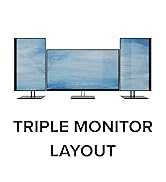
I've had this since October 2014. This is a great dock, way cheaper than a lot of other solutions. I got this dock mainly to connect my Surface Pro 1 and 3 to it. Both have docks specifically made for them by Microsoft, but for the Pro 1 it was extremely expensive for not many ports. For the Pro 3, there are a lot of port options, however the dock itself has bugs and is finicky. Firstly, I like the fact that when you first buy it, they email you with some instructions to where to download drivers and stuff so you could get your computer/device ready for when the unit arrives. I got that done with no hassles, then the unit comes in 2 days later with prime shipping. Installing it was a cinch, just connect power and all the stuff you want connected to it. For me, I connected 2 monitors to it. The unit has 2 outputs for video, one HDMI, and the other is DVI. Connecting them was pretty self explanatory. I also have a logitech wireless mouse connected. Once everything is connected, you just connect the USB cord to your device. For the first time it does this setup thing and detects your displays and asks you to adjust the monitors as you deem necessary. After that, every time you connect it, it just works. I have no problems with it whatsoever, and it work pretty much every time. You can have one or both monitors on if you want. I have it connected so that the Surface itself is a screen and the other 2 monitors extend the desktop, so I essentially am running a 3 monitor setup. There is not noticeable lag that you see with USB 2.0 docks. The one thing is that you have to turn on your computer/device before you connect it. For some reason, if you connect it first, then turn on, it just stays as a black screen. You'll then have to unplug, then plug it back in for it to work. As long as you turn it on first, then it's fine (you don't have to unlock it first either). As soon as you unlock it, it detects everything and just starts up like how you left it before. Other than that, I don't have any complaints. It's small, has one USB charging point for when nothing is connected which is nice. I would be nice if it also charged my Surface like the official dock, but since this is universal it's fine. I can use this with any device fine. I did have a Sony Vaio Pro 13, and it also worked flawlessly with that when I had it.
N**E
Solid, Versatile Dual‑Monitor Dock
The Plugable Universal Laptop Docking Station with Dual HDMI for Windows and Mac is a reliable way to turn your laptop into a full‑featured desktop setup. It supports two external monitors via HDMI (often up to 4K on modern models), plus extra USB ports, Ethernet, and audio, all through one cable to your laptop. Setup is straightforward and usually plug‑and‑play, with good compatibility across Windows and macOS, including both USB‑A and USB‑C laptops. Many users report that it tidies up their workspace well, letting them connect monitors, keyboard, mouse, printer, and other peripherals without juggling multiple cables. Overall, this is a strong choice if you want a no‑fuss, dual‑HDMI docking station that works across Windows and Mac systems and keeps your desk organized.
K**.
I Have Tried The Competition - This is a GREAT Dock!
I recently had opportunity to appreciate exactly how good this dock is compared to a couple of competing solutions, but first a little background: I purchased this dock in May 2014 to use with a Lenovo Yoga (13"), which now runs Windows 8.1 Update 1. The dock is VERY reasonably priced compared to some competing products. Once I downloaded uploaded DisplayLink drivers, the dock has performed without issue. USB 2 and 3 devices work well, the screens (both DVI, one connected with a DVI to HDMI adapter) have very satisfactory lack of lag or tearing, and do not flicker, blank, or give me issues. In short - it just works very well, with minimal fuss for me. So much so I pretty much just do not think about it. When my Yoga goes somewhere, upon return I only have to connect a power cord and the USB 3 cord from the dock and I'm in business. Enter competing product #1: At my last job, we were provided Targus USB 3 docks and my experience with their solutions when using my Lenovo Yoga was much worse. I had video issues, disconnection issues with devices, and just generally found the dock flaky (This was a ACP70USZ model for reference). I could never get the happy nirvana I had at home with my dock at work, despite trying a combination of new drivers and despite calling support. Bear with me - the next paragraph sets up another comparison: I was laid off at the end of August 2014, and started a new position as a contractor for Microsoft in October. At the new position, I no longer needed the Lenovo Yoga, which now remains at home on the Plugable dock. I was provided a very nice ThinkPad X1 Carbon laptop, with a ThinkPad OneLink Pro Dock, which connects using a proprietary connector, and also provides power to the laptop. To say the docking and video experience was a letdown for that product is a severe understatement. Updating BIOS, video drivers, dock firmware, and DisplayLink drivers made no difference in solving my issues. Almost all my co-workers experience some issues with this Lenovo Dock. Mine will graphically "freeze" my laptop (remedied by unplugging then re-plugging the dock cable to the laptop) about 2 out of 3 lock/unlock cycles. One or the other monitor will "blank" for about 2-5 seconds at least once per hour. Video feels slow and unresponsive, and the laptop just performs less reliably with more slowdowns and occasional blue-screens when connected to this dock. I hate the Lenovo Dock. So much so that I decided to take my Plugable UD-3900 to work and try it for a few days to see if my problems went away. What a surprise - all of my issues seem to have dissappeared. With the exception of having to plug in one more cable to power the X1 Carbon, the Plugable Dock is a far superior solution. The once a day blue-screens are gone. The "freezes" are gone. The slowness is gone. It works just as well, or better, than it did at home on my Yoga laptop. Lenovo should recall the OneLink Pro docks, but that is a separate conversation. I can't say many other good things, other than to say after trying two other competing products over an extended period of time, I'm really pleased, again, with this dock. I don't often write reviews, but I felt others might want to know how well this dock has performed for me. Now if I can only convince the powers that be to reimburse me for a second one of these for work. I might note that both of the competing products I reference are priced significantly higher than this Dock.
M**R
Worth every penny!
I wanted to find a simple docking station for my MacBook Air. I wanted to connect two monitors and a wireless keyboard and mouse combo. This docking station had every port I needed and more. Everything was easy to connect and everything stays connected! Everything runs smoothly with no issues
M**N
Plugable UD-3900 Great for Desktop Expansion; not just laptops
My older home-built desktop runs with up to three monitors. I bought the Plugable UD 3900 primarily because my new Lenovo A740 touchscreen all-in-one computer has no video out capability at all. The A740 is setup as dual-boot with Windows 8.1 and Windows 10 preview 10074. Install Note: Plugable sent an email right after I ordered the UD 3900 from Amazon. I followed their advice installing the Displaylink software from their site before plugging in and turning on the unit on both Windows 8.1 and 10. Display configuration now: (1) Lenovo A740 AIO - 2560x1440 (2) Dell 2408WP - 1920x1200 - Using HDMI (also 2 DVI-Dual, Displayport, VGA) (3) Sceptre X20G-NagaIII - 1680x1050 - Using VGA with Plugable adapter (also DVI) Using Windows 8.1: - Used the display settings panel to align the monitors as extended displays. Monitors are running left to right starting with the A740 in decreasing screen size. - Each monitor has a separate background by default using builtin "Reflections" Hi-res theme. - Easily moved windows across each display. - Snap worked left/full/right on each screen and consecutively across all screens. - Ran 1080P video in VLC. Moved to each display. Ran full screen on each. No glitches. - Each Plugable run display shows taskbar by default. Start menu opens locally on each monitor while applications start on default display only. This is the expected behavior. You can turn off the taskbar on Plugable run displays via the taskbar properties. - Audio out works well. Did not try the microphone jack. - All 4 USB 2.0 ports are now used on the 3900 freeing up one of 4 USB 3.0 ports on the A740. Previously needed a USB 2.0 external hub for (1) Lenovo wireless keyboard and mouse, (2) Logitech multi-touch panel, (3) Turtle Beach USB audio device running Audioengine speakers (Lenovo built-in sound is awful), and (4) Verifi P2000 fingerprint reader. Everything works. - Both USB 3.0 ports work. Tried USB 2.0 & 3.0 flash drives plus USB 3.0 external drives. - Have not tried ethernet since the AIO has a builtin port. Using Windows 10 10074: Everything works just the same. I did have to restart twice rather than once as on Windows 8.1 First time after installing the Displaylink software. Second time after turning on the device when the software ran display configuration. Please note that the software installs successfully but ends without confirmation on both versions of Windows. If you run it again to make sure, it informs you that the latest version is already installed. Net: My new Plugable UD-3900 replaced a USB 2.0 hub while providing support for two additional monitors, four always used USB 2.0 devices as well as two more much needed USB 3.0 ports. Having two front-facing USB 3.0 ports and audio jacks is a feature I did not realize would be so useful. The Lenovo A740 audio jack is a ganged single plug (requiring a spliter) which is hard to access in a tight space in the back behind a massive low slug 27 inch screen. Having two USB 3.0 ports mounted vertically by my right hand makes using flash drives and my Yubikey Neo so much easier. And I now have 3 free USB 3.0 ports on the rear of the left side of the A740.
M**M
Fantastic customer service, great product
I've long been a fan of Plugable's products. I like these products so much I've bought several for my family. In particular, this docking station has a lot of fantastic features in a great looking box. Plenty of ports, pretty decent cable length. Recently, I needed to take advantage of the warranty and their technical support was quick and very courteous. They took care of my issue very quickly, and even prompted me to install the DisplayLink driver, which isn't absolutely necessary but definitely recommended. Additionally, I've learned that they actually have a tool that you run on your system which diagnoses several things -- including the hardware itself and how Windows is configured to use it. This is a rare advantage, in my opinion, to diagnosing issues with a product -- it indicates that they have a pretty good process for resolving technical issues by investing in developing this tool
D**Z
Calidad
Excelente producto, solo es conectar y usar. Ya tenia anteriormente el modelo con VGA pero solo tenia un puerto HDMI por lo cual cambie a este con dos puertos HDMI. El resto continúa igual a excepción del cable de corriente y el cable a la computadora/laptop que ha mejorado bastante en su calidad y han agregado un adaptador a C pero este no carga la laptop así que un punto negativo para laptops qué solo cuentan con uno para carga.
S**A
Product did not have AU adapter
Works wells. However, after spending so much on it again had to purchase AU adopter to use it.
M**A
不具合無し
LANの有線接続、1920×1200のモニタ2台接続など、やりたいことはすべてできました。 耐久性はこれからですが、今のところ特に不具合などなく満足です。 唯一、USB type-C接続のものと比べると価格が高めです。もう少し安くなるとありがたいです。
A**R
Great Value for Price of Plugable USB 3.0 Universal Docking Station!
Works well with my ASUS K401U Notebook through a single cable to one of its USB 3.0 port.
A**S
Easy setup, works well
Good. Pretty much plug and play!
Trustpilot
5 days ago
1 month ago